
Building IanOS Part 3: Relationship Intelligence, the External AI Bridge Pattern, and Cross-Environment Lessons
The demo HR Tech board gets serious: a relationship intelligence model, an external AI bridge pattern for pulling context from any LLM, and the cross-environment bugs that cost me an afternoon.
Previously, on IanOS
The last devlog ended with a working homepage and a live HR Tech board syncing task data from my Obsidian vault to a Supabase database and rendering it in a clean web dashboard. Technically functional. Practically still raw.
Here's what bothered me: I had tasks but I had no intelligence. I could see what existed but not what mattered. I could see projects but not people. And in HR tech — the domain I've chosen to use as the design context for this board — the relationships are often more important than the deliverables.
This session was about fixing all of that.
Project note: IanOS is a personal experiment and open-source project in progress. All boards, contacts, and task data shown here are placeholder examples used to develop and stress-test the features. Nothing here is connected to any organisational system or employer infrastructure.
Part 1: Core Board Features
I intentionally stripped out the complex layered logic that makes most off-the-shelf project tools feel bloated. The core functionality is simple and focused on what I actually use day to day:
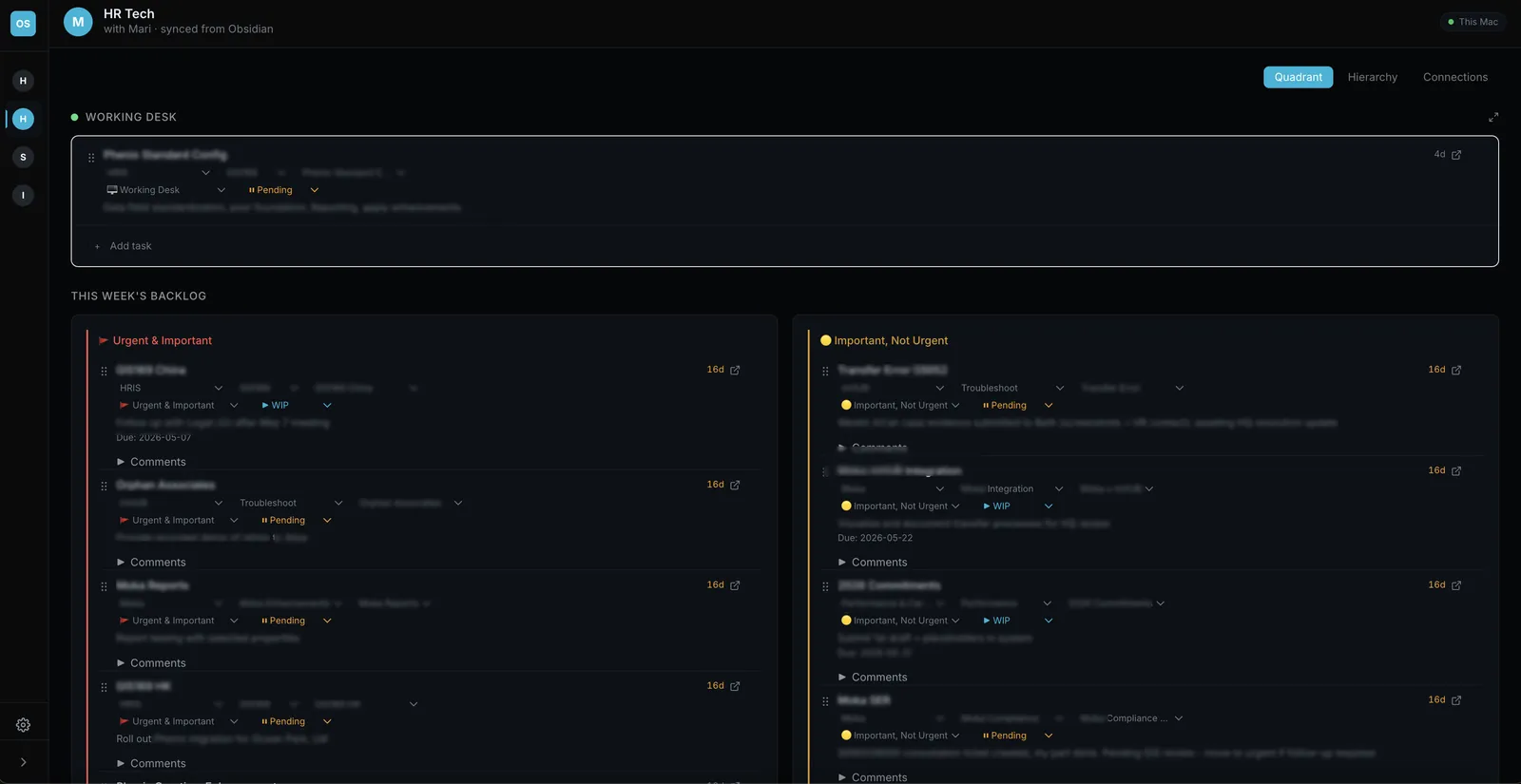
- Day counters on every task in the corner of each card, turning amber automatically if a task sits open for more than 14 days. No better way to call out what you've been ignoring.
- 5-minute undo grace period for completed tasks. Accidentally marked something done? Flip it back immediately, no page refresh needed. After 5 minutes, completed tasks automatically move to the archive.
- All standard board functionality works as expected: drag-drop between status columns, optimistic updates, inline task creation, no complicated nested menus to wade through. Tasks are tagged by project for simple filtering, no rigid hierarchy enforced.
Part 2: The Connections View — Where It Gets Interesting
This is the part I'm most excited to share, because I haven't seen it built quite this way anywhere else.
The Problem With Stakeholder Management
The HR Tech board is the domain I chose to prototype this feature against — it's a context where relationship management is genuinely complex and where the standard tooling is weakest. The contacts in this demo are placeholder examples, not real people or professional connections.
The design problem I'm solving for: in any context where you work with many people across functions — enterprise HR, consulting, BD, or any role with a wide stakeholder surface — the standard advice is to "keep a list." Which nobody does. And even when they do, a list doesn't tell you anything useful. It doesn't tell you whether the relationship is healthy. It doesn't tell you when you last actually spoke. It doesn't tell you what they need from you right now or what impression you're making.
I wanted a stakeholder model that answers different questions: not "who do I know?" but "how are these relationships actually doing, and what should I do about it?"
The Relationship Model
Each stakeholder in IanOS has two layers of data.
Layer 1: Position
- Ring: Inner / Mid / Outer / Cold — how close is this person to my core work?
- Cadence: how frequently should I be in contact? (default 30 days)
- Last contact: when did I actually last interact?
- Health: derived automatically — green if contact is current, amber if approaching overdue, red if past due
Layer 2: Relationship Intelligence Four dimensions, each rated 1–5:
- Trust — do they trust my judgment and execution?
- Closeness — how strong is the personal connection?
- Visibility — do they see and remember my contributions?
- Alignment — are we aligned on priorities and approach?
Each dimension is independently meaningful. You can have high trust and low visibility (they rate you well but you're not top-of-mind). You can have high closeness and low alignment (warm relationship, different agendas). The combination tells a story that a single "relationship score" never could.
The Radar Diamond
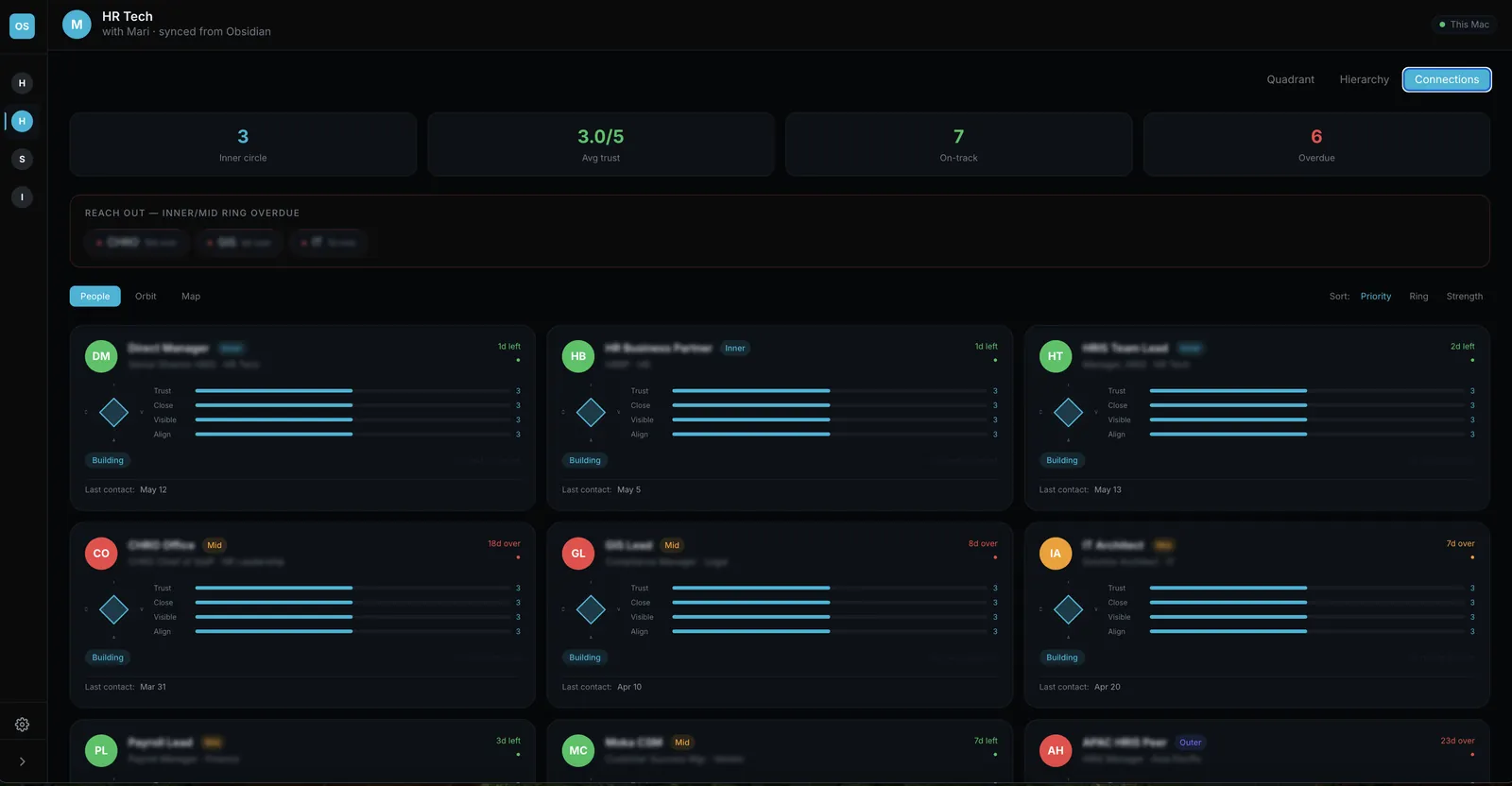
Every stakeholder card has a mini radar chart — a 64×64 SVG diamond with four axes: Trust (top), Visibility (right), Alignment (bottom), Closeness (left). Each axis scaled to the ring radius by the 1–5 value.
The shape of the diamond is genuinely informative once you start reading a few of them. A lopsided diamond (strong trust, weak visibility) is a different problem than a small but balanced diamond (moderate across all four). A flat diamond means the relationship hasn't really been thought through yet.
The color of the radar changes with average score: green for ≥4, cyan/teal for ≥2.5, amber for below. The cards themselves show four micro bar charts alongside the radar — one per dimension — with color coding per bar. You can glance at a grid of twelve people and immediately see whose relationship is the weakest and which dimension is the gap.
Three Sort Modes
Cards in the grid can be sorted by:
- Priority: inner ring first, then most overdue — who should you be thinking about right now?
- Ring: pure structural grouping
- Strength: by average of the four dimensions — who are your strongest vs. weakest relationships?
Three Display Modes
The Connections tab has three sub-modes, switchable without page reload:
- Grid (default) — the card grid described above
- Orbit — a concentric circle SVG visualisation with me at the centre, stakeholders as nodes plotted by ring, health color-coded, clickable to open the panel
- Influence Map — a force-directed graph showing relationships as edges (who knows who, who influences who)
The orbit view is more visual and good for presentations. The grid view is more analytical and good for day-to-day work.
The Stakeholder Panel
Clicking any stakeholder opens a slide-over panel. Inside:
- Header with avatar, ring badge, health indicator, and a pencil icon to edit the profile inline (name, role, org, department, email — no separate edit page, no navigation, just edit in place)
- Relationship Dimensions — interactive 1–5 controls for all four metrics, click to rate and save
- Relationship Intelligence — three freeform text areas: their expectations, my value to them, next move
- "Create / Open Obsidian note" button — generates a markdown file in a local vault directory (e.g.
/Stakeholders/Name.md) with full YAML frontmatter containing all the structured fields, plus section headers for About, What matters to them, My value to them, Next move, Meeting Log, and Key moments. Once the note exists, you can write in Obsidian and the values sync back to Supabase vianpm run sync:stakeholders
The Obsidian note is a two-way contract. The YAML frontmatter is the structured data. The markdown body is the human writing space. The sync script reads the frontmatter and upserts Supabase, preserving the body. The "Create note" button from the UI reads Supabase and generates or updates the frontmatter, preserving what you've written.
The Network Header
At the top of the Connections view, four stat tiles:
- Inner circle count — how many people are truly close?
- Average trust score — the aggregate health of inner/mid ring trust
- On-track contacts — how many relationships are within their cadence window?
- Overdue — how many have gone quiet?
Below the tiles, a Reach Out strip surfaces the inner and mid ring contacts who are most overdue, listed by name with a day count. It's a nudge, not a directive — but it's the nudge I actually need.
Part 3: The External AI Bridge Pattern
This is more of a temporary workaround than a polished feature. I'm making sure it works reliably for my own use case first, and will revisit for automation once I've ironed out the edge cases.
The concept is basically the same logic as that Gemini ad everyone saw — the one showing how to migrate your ChatGPT conversation history. Just use a prompt to extract context from one system and reformat it for another. Same idea, different purpose.
The Problem
There's always valuable context living outside IanOS in other AI tools — ChatGPT, Gemini, a personal copilot, local models. These tools have seen conversations and context that your personal OS can't directly access. But their read of your work relationships could meaningfully improve what IanOS shows you.
Direct API connections are usually not practical — rate limits, auth complexity, or simply the fact that context is scattered. The bridge pattern works around that without needing any integrations.
How It Works
The External AI Bridge lives on the IanOS homepage. Three steps, works with any LLM:
Step 1 — Generate Prompt IanOS assembles a structured prompt from live data: current task list, active projects, and key stakeholders with their relationship intelligence fields populated. For each inner/mid-ring person, it asks the AI to:
- Reflect on recent interactions you've shared with it involving that person
- Infer their current mood signal (positive / neutral / concerned / unclear)
- Describe what they currently need from you
- Assess the impression you're making
- Suggest one concrete next move for the relationship
Step 2 — Paste to Your AI Tool, Paste Back Copy the prompt, paste it into whichever tool you're using. Wait for the response, paste the raw JSON back into IanOS.
A word on data hygiene: only paste non-sensitive context into this workflow — task statuses, relationship notes, general priorities. Keep anything confidential out of any external tool you don't fully control. The bridge is designed for your personal context, not for corporate data.
Step 3 — Review and Apply IanOS parses the response. For each recognised item:
- Task updates: matched by title similarity → shows proposed action text, one-click apply
- Stakeholder interactions: logs the interaction type and date
- Relationship insights: shows each person's mood signal, current need, impression you're making, and a suggested next move — with an "Accept" button that writes directly to the stakeholder's
next_movefield
Nothing applies automatically. Every suggestion goes through a review step. The diff-style UI makes it fast to scan and accept or reject.
The Mechanic Worth Keeping
The paste-in/paste-out friction is intentional. It's a human checkpoint. Any LLM's read of your relationships might be wrong — and it has no awareness of context you haven't shared with it. Reviewing every suggestion before it touches your data isn't a limitation of the pattern. It's the point of it. Automation comes later; trust comes first.
Part 4: The Operational Stuff (Also Important)
Task Creation From the Board
Every quadrant card and the Working Desk now have an inline "+" button at the bottom. Click → small form expands in place with title, action, and due date fields. Enter to submit. Escape to cancel.
On submit:
POST /api/tasksinserts to Supabase withwork_status: wipand the correct quadrant status- If the local filesystem is reachable (Mac only), a row is appended to the correct section of the Obsidian dashboard in properly formatted wikilink format
- The task appears optimistically in the board immediately — no page refresh
Obsidian as a Peer, Not a Subordinate
One thing I refined this session is the Obsidian sync philosophy. The dashboard file is the human-writable canonical source in local dev. Supabase is the machine-readable canonical source in production. They should stay in sync, and both should be allowed to win.
Tasks created on the web → written to Obsidian dashboard immediately. Tasks written in Obsidian → pushed to Supabase via sync script. Changes in Obsidian notes body (the free text sections) → never overwritten by the API.
The rule: structured fields are owned by Supabase, prose sections are owned by Obsidian.
The Cross-Environment Lessons
I burned a non-trivial amount of debugging time on things that should have been obvious in hindsight. Documenting them here because they'll bite anyone building the same stack:
1. Never ship UI code before running the migration on production. The work_status column existed in local dev (I wrote the migration). It did not exist on Vercel (I hadn't applied it). Every time I set a task to "Completed," it reverted silently — the PATCH hit a 500, the optimistic update rolled back. The fix was one SQL statement. The diagnostic was forty minutes.
2. Task IDs are different in local vs. production. In local dev, task data comes from the Obsidian parser and has Obsidian ob_ids (060101). In production, it comes from Supabase and has proper UUIDs. Any API route that updates tasks by ID needs to detect which type it received and use the right column. Now handled with a UUID regex check.
3. Auth bypasses must cover all connection types. The requireAuth function originally bypassed Clerk for localhost. It didn't bypass for LAN access (my Windows device at 192.168.x.x). Every request from Windows returned 401. Extended the bypass to include RFC-1918 private IP ranges and added a fallback for when Clerk keys aren't configured at all.
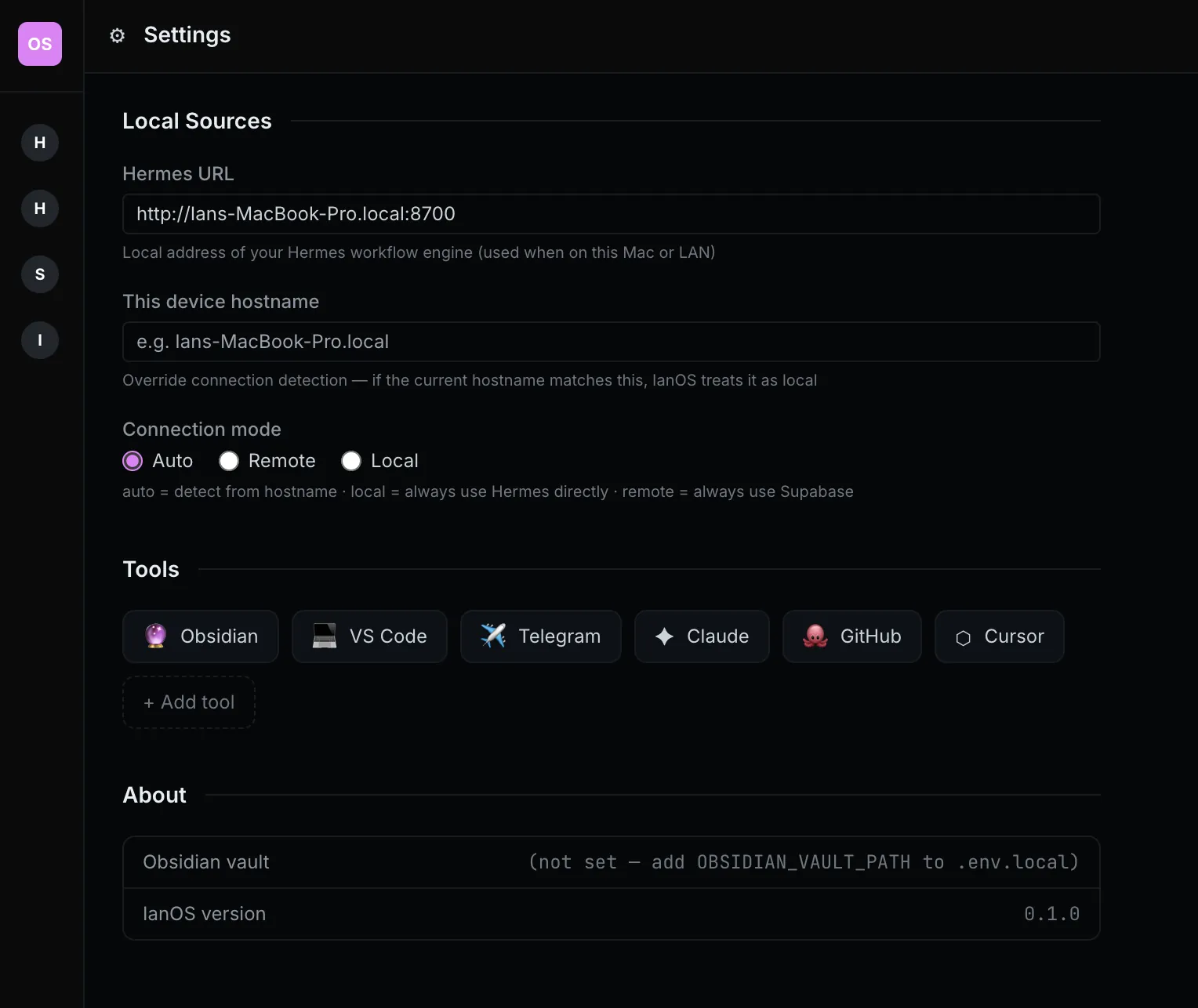
4. Build access-awareness into the system from day one. One thing that quietly paid off: IanOS detects which network context you're accessing from and adjusts its behaviour accordingly. The logic is straightforward — the server inspects the incoming request's IP against RFC-1918 private ranges (10.x, 172.16–31.x, 192.168.x) to distinguish between localhost, home LAN, and external public access.
From that single detection, two things change automatically:
- Auth requirements: no login prompt for pre-approved local and LAN devices; full OAuth for anything external.
- Feature availability: Obsidian file sync only runs when the request originates from my Mac on the local network. Other devices get read access to the live data, but writes to the vault don't trigger from them.
It eliminates the repetitive login prompts for daily use while keeping the system properly locked down the moment you step outside your home network. Simpler to implement than it sounds, and worth doing early before access patterns get complicated.
Where Things Stand
The HR Tech demo board now has:
- ✅ Drag-drop project board with optimistic updates, work status tracking
- ✅ Day counter on every task (auto amber alert for >14 days)
- ✅ 5-minute grace period for task completion
- ✅ Inline task creation
- ✅ Simple project-tag based filtering (no complex nested hierarchies)
- ✅ Connections view with relationship intelligence model (4-dimension radar)
- ✅ Stakeholder panel with inline editing and Obsidian note generation
- ✅ Generic external AI bridge pattern for context sync
- ✅ Bot auto-start state now persists across Mac reboots via launchctl
The stack is feeling genuinely solid. Data flows where it should. The cross-environment bugs are documented and won't recur. The relationship model is the thing I'm most proud of this session — it's the first feature I've built that I don't think exists anywhere else in quite this form.
On Building It Yourself
You don't have to wait for product vendors or developers to ship the features you want. In the vibe coding era, you have the knife to carve any system exactly to your liking. It costs tokens — whether that's worth it is your call. For me, it's invaluable. The most expensive experience you can have is one that fits precisely how you work. Off-the-shelf tools are built for everyone. This is built for one person.
Next up: the Study board. And a few architectural ideas I'll save for the next post.
If you're building something similar, this is an ongoing personal experiment. I'm hoping to clean up the codebase and open source it in the near future. The patterns are generalisable even if you build your own version from scratch.
Ian Xie · May 2026 · ian.us.ci